Video for Windows and Its Codecs
Navigator
I have some information to you about several Video for Windows
codecs.
Video for Windows (VfW) is a subsystem that powers you with a common
API to record, edit and playback video. It was released by Microsoft
mainly as a response to Apple's Quicktime for Macintosh. As such, it
doesn't provide you with a really stable subsystem. In fact, it's
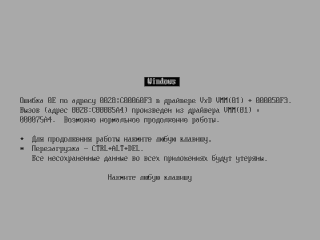
buggy enough to crash your Windows 95 system.
To use the subsystem, you better get a reasonably powerful computer.
The processing power you'll need heavily depends on the video you're
about to work with, its size, used codec, etc. The one that can
officially run Office 97 may or may not be enough. If you would like
to play more `advanced' video (like with higher resolution or
advanced encoding), you might need an even more powerful system.
Generally, video codecs below are listed in an order of increasing
decoding difficulty. If you can't use Video for Windows
capabilities, check to make sure you have Video for Windows
installed. It's not included in Windows 3. If your attempts to play
a video invariably fail, maybe give ActiveMovie, or DirectShow, a
try, or use Windows NT that doesn't suffer from such bugs, or try
something absolutely different.
AVI is the standard format for Video for Windows. It lets you store
up to 100 streams with video (compressed or uncompressed), audio,
palette changes or arbitrary text together. Most often you'll see
them holding one audio stream and one video stream. Codecs that
produced said streams are identified using FourCC — a four
character code.
The AVI file format is based on the Resource Interchange File Format.
It is thus made of lists of chunks where everything is stored.
There's a header list with information about the whole file and
streams, and a list of streams themselves. On the end of the file
the location index can be found, but it's optional.
The video stream consists of frames. There are
three types of frames: intra-coded (key frames), delta, and dropped
frames. The first constitutes a frame that's encoded without
relying on other frames, thus it can be decoded on its own. You
only need to decode the last key frame and all following delta
frames to get to the desired location. This's why they're also
called key frames. Delta frames encode the difference of a frame
in scope from the previous frame. Dropped frames are not real; the
last non-dropped frames is used in their place.
Audio streams are like those found in WAVE
audio files. They can be optionally compressed, but their encoding
is constrained to perfectly constant data rate. (This limitation
lives only within Video for Windows) A little continuous fragment of
audio can be written in the beginning of a file for performance
reasons. They can interleave with video streams per frames or per
time.
   Interleaving types:

   1. Per-frame interleaving:

   -================================================================-
    |       |       |       |       |       |       |       |
    | Audio | Video | Audio | Video | Audio | Video | Audio | Video
    | Frame | Frame | Frame | Frame | Frame | Frame | Frame | Frame
    | Chunk | Chunk | Chunk | Chunk | Chunk | Chunk | Chunk | Chunk
    |       |       |       |       |       |       |       |
   -================================================================-

   2. Per-time interleaving:

   -================================================================-
    | REC Chunk             | REC Chunk     |REC Chunk
    +-----------------------+---------------+-----------------------
    | Audio | Audio | Audio | Video | Video | Audio | Audio | Audio
    | Frame | Frame | Frame | Frame | Frame | Frame | Frame | Frame
    | Chunk | Chunk | Chunk | Chunk | Chunk | Chunk | Chunk | Chunk
    +-----------------------+---------------+-----------------------
    |                       |               |
   -================================================================-
Data streams can interleave as well as audio streams can. They can
be used for subtitles etc.
The original AVI format file can be as large as 2 GB; with OpenDML
extension it can be even larger.
The subsystem was designed to cover video processing techniques that
were known at the time of creation (1992), and it didn't look forward
into the future. Due to that some chosen design decisions became an
obstacles for implementation of some later video processing ideas,
and this in turn let to some questionable decisions from Microsoft.
One wonderful design decision here is the mandatory `one in — one
out' rule that means that frames must be processed in strict
sequence. This goes in direct conflict with the logic of B-frames,
which require decoding of previous and following
non-B-frames, as they encode the difference from the past and the
future. This enables faster seeking because P-frames only encode
difference from previous P- or I-frames. B-frames could've been a
big problem for underpowered systems, but there're plenty of
overpowered machines, and over time most systems get upgraded anyway.
But Microsoft would do anything about that only a little more than a
decade later.
While people were at it, two workarounds were invented:
- decoder makes a pause when it encounters a B-frame, waits until a
non-B-frame arrives, decodes them both and resumes playing;
- encoder encodes two frames (B- and next non-B) in one delta frame,
sparing the decoder from the need to create an annoying pause.
Another possible solution is just not use B-frames, but this's sure
not something anyone could live with. Even though no severe file
size increase was noticed (only 9% increase), a severe performance
decrease was noticed with encoding speed degroding by about 36%.
For video bitstreams with a target data rate disabling B-frames will
lead to slightly coarser encoding.
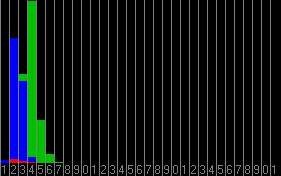
For reference, there's an XviD encoding with the target data rate of
120 KB/s (e.g. 960 kb/s). B-frames are enabled, and their average
quantization ratio is 4.27. (The less the better) P-frames and
I-frames have a quantization ratio of 2.42 and 2.48 respectively.
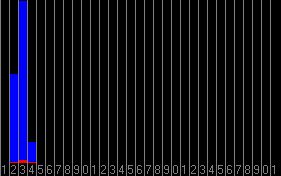
Without B-frames, P- and I-frames get an average quantization ratio
of 2.75 and 2.91. This will cause the video quality to drop but not
significantly.
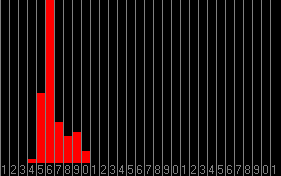
When you disable P-frames though — the quantization ratio can drop
far to 6.46.
An undefined amount of time later Microsoft chose to `delete' Video
for Windows from Windows Vista or 7 I'm not sure here. Actually,
they removed any visible ability to configure it. If they really
proceeded with its removal, then VirtualDub would not compute. But
it computes, and even the video player from Windows 3.1 works and
plays videos all fine — in Windows 7. This means it's still around.
What this actually means: you can no longer control Video for Windows
video and audio codecs without invoking third-party programs. Not
that it was any useful, but still, in the off chance you wanted to do
something — you can't.
Microsoft has determined that there's no need for individual
applications to handle codec parameters, and opted them to store them
however they want, usually system-wide. Changing codec settings in
one program can easily affect another one if both happen to use the
same codec. A workaround: start processing operation in one program,
then, not waiting for completion, configure the codec in another
program and start processing in it too.
This can be a problem for those who try to do multiple tasks at the
same time.
Video compression is integral in digital video compression. The
reason is simple: there's A LOT of data, most of which is usually
reduntant and not needed in such quantities. For flexibility,
compression and decompression is done by separate encoding-decoding
programs, shortly called `codecs'. Video for Windows comes bundled
with a very little set of codecs, most of which are rather simple.
Their simplicity varies though.
Note: I've included thumbnail pictures as an
illustration of codecs in action. You can look at an upscaled sample
by activating them. I put them because I believe compression
artifacts best show the logic of codecs. Also, I've included some
benchmark numbers in the following sections; they've been gotten on
my laptop recompressing
320 X 240 video.
There're two kinds of video compression: the first is performed
through destruction of data, and the second is performed through
effective packing of all given data (lossless
compression).
For a lossy compression, you are offered with a quality slider that
heavily depends on an interpretation by codec. The high value here
represents high detail preservation, while the low value may be
treated as coarser compression to various degree.
Another control provided is the target data rate, which some codecs
treat as it should be while some (early) treat it as a rate limit
instead.
Lastly, you can (and should) specify the frequency of intra frames.
The more frequent they are, the faster will the seeking be, and the
larger will the file become. My choice is 60.
 This's perhaps the least effective video codec available; it's more
to demonstrate the possibility of digital video, not for real use.
If you try to encode something in high quality you may end up with
the result only twice as smaller than un uncompressed version. From
75 through 60 quality the data rate drastcally drops, with the
quality. On the other hand, any 32-bit computer can decode it
without much a trouble. Some early video capture cards even offered
hardware compression into Microsot Video 1.
This's perhaps the least effective video codec available; it's more
to demonstrate the possibility of digital video, not for real use.
If you try to encode something in high quality you may end up with
the result only twice as smaller than un uncompressed version. From
75 through 60 quality the data rate drastcally drops, with the
quality. On the other hand, any 32-bit computer can decode it
without much a trouble. Some early video capture cards even offered
hardware compression into Microsot Video 1.
Encoding is done quite fast: I get 142 FPS with 60 quality, and
output data rate of 96 KB/s.
This codec divides the frame into 4 X 4 pixel blocks and encodes them
as bitmaps wetween either 2 colours for entire black or 2 colours for
4 subblocks 2 X 2 pixels wide. Encoding and decoding is done from
bottom to top because Microsoft loves to do everything from bottom to
top. To keep itself within target data rate, it skips more blocks.
It can encode in either 15 bit colour space or in 256 colour palette.
In order to invoke key frames, you must specify key frame interval.
Otherwise, it will use no key frames at all.
Additionally to the standard quality slider, it has its own slider
that controls quality against time. What it actually controls is how
often will blocks be skipped — without affecting compression of
other blocks.
Anyway, if you would like to record some video you would better just
use some video cassete recorder instead.
As I've read somewhere, its target format is 160 X 120 pixels at
10 FPS.
 While Microsoft Video 1's main target was Realworld video, RLE was
intended for (simple) computer animations. As its name suggests,
it's merely a running length encoding, so it should work good for
videos made of continuous monotone fills. It won't compress mosaics.
All frames are encoded independently. The codec only supports 256
colour palettes. Now imagine what computer animation it accepts.
While Microsoft Video 1's main target was Realworld video, RLE was
intended for (simple) computer animations. As its name suggests,
it's merely a running length encoding, so it should work good for
videos made of continuous monotone fills. It won't compress mosaics.
All frames are encoded independently. The codec only supports 256
colour palettes. Now imagine what computer animation it accepts.
It still lets you control the quality though. If you set the lower
quality setting, then, if the colours further right in the image are
close enough, even though they can have a different closest colour
from the palette, it'll be encoded in the same running lenght. This
eliminates extra RLE codes.
Fact: Microsoft RLE is used in Windows 95 Explorer.
This's what lets you look at flying file icons while your system does
actual work on real files.
 This codec operates with 2 X 2 pixel monochrome blocks and 4 X 4
frame cells. Each cell can contain either 4 such blocks or 1
upscaled block. These blocks are stored in two different groups
both with up to 256 blocks in capacity; a pair of these groups encode
a stripe of a frame. A frame can be encoded with multiple stripes.
This codec operates with 2 X 2 pixel monochrome blocks and 4 X 4
frame cells. Each cell can contain either 4 such blocks or 1
upscaled block. These blocks are stored in two different groups
both with up to 256 blocks in capacity; a pair of these groups encode
a stripe of a frame. A frame can be encoded with multiple stripes.
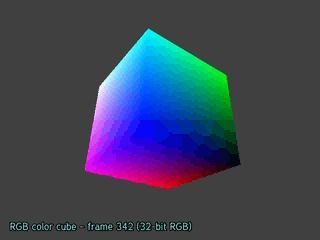
The original Cinepak by Radius video codec can expose one noticable
quirk where the frame gets split into two zones, with the top one
getting encoded in high quality while the bottom one gets bluried
out. This can get to the point where you can visually draw a line
between these two zones. Just try finding it in the image above.
This codec is very slow: only 19 FPS in 60 quality and target data
rate of 120 KB/s. The more the data rate, the even slower it
encodes, down to 6 FPS and 628 KB/s (it's unlimited in this case).
Perhaps it's not as slow as an FFMPEG implementation (it makes full
1 FPS).
The codec was clearly designed with Realworld video in mind. If you
try encoding a computer-generated video with target data rate
enabled, it'll blur the picture away. It tries to remain within the
target data rate by skipping some blocks and by downsampling some.
Static text on static background can also exhibit some noise.
The rate of key frames should be specified; otherwise it'll make ALL
frames key frames.
The intended video format for Cinepak is 320 X 240 at 15 FPS. It's
supposed to be played off of a compact disk.
 This's a video codec from Intel. Unlike codecs above, this one won't
turn the video into mosaic on any global motion thanks to the use of
motion compensation.
This's a video codec from Intel. Unlike codecs above, this one won't
turn the video into mosaic on any global motion thanks to the use of
motion compensation.
For encodng, the frame is split into up to 4 horizontal bars
160 pixels in width. These bars are then divided into a binary tree
of cells. They're made by spliting bars in half and repeating this
splitting on resulting regions until the desired segmentation is
achieved. Every resulting cell has its own quantization mode and
delta table index. Every cell contains blocks 4 X 4 pixels in size
that can be stretched to cover 8 X 4 or 8 X 8 pixel area of the
frame. Their scale is determined on the level of the cell. The
motion compensation can be applied on the level of 32 X 32 pixel
regions. All of that is packed and compressed with running length
and huffman encoding.
The codec implements software SIMD (Single Instruction Multiple
Data), for which it reduces the colour space to 7 bit depth. This
can lead to colour bending, but much more often than not it's already
cased by quantization anyway.
As for encoding, it's half as faster than Cinepak: it keeps the speed
at 33 FPS in any quality. If you choose to use target data rate,
then the codec will ignore the quality setting — so you won't have to
bother with picking an optimal setting. The resulting data rate was
307 KB/s.
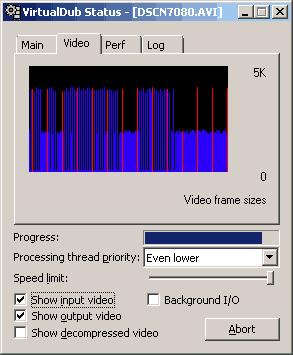
Be warned on insufficient data rate: Indeo 3.2 produces frames with
size stepping by 2 KB blocks, and if you set too low data rate, it
can start skipping frames!
The lowest allowed rate of key frames is 15; 4 is recommended
regardless of frame rate.
Supported video resolutions are multiples of 4, from 16 X 16 up to
640 X 480. Video really should not be tall.
Unfortunately, although Indeo 3.2 (and 4 below) was in widespread use
during 90s, it was effectively killed during 2000s, with codecs being
removed from software bundles and operating systems. These codecs
are still present in Windows Vista and 7, but they are disabled by
default. Nothing prevents you from reenabling them though.
 This's one of two codecs from one set (the other is Indeo 5). Instead of something that was used all above known as
`vector quantization', these ones are based on wavelets. This's also
one of a few codecs that can utilize B-frames.
This's one of two codecs from one set (the other is Indeo 5). Instead of something that was used all above known as
`vector quantization', these ones are based on wavelets. This's also
one of a few codecs that can utilize B-frames.
The video frame is split into multiple mutually independent
horizontal stripes. They contain macroblocks 16 X 16 or 8 X 8 pixels
in size. Chroma is downsampled to one sample per 4 X 4 pixel region,
combined into 4 X 4 sample blocks. Ligtness is split into 8 X 8
blocks. Every macroblock has its encoding type, quantization delta
and motion vector. Next, a block wavelet transform is applied.
There are multiple types of wavelets supported by a codec, intended
for different types of machines: Haar (square wavelet, for low-end),
Slant (linear one, for medium-end) and cosin (COS, DCT, a high-end
toy). To accomodate various processing powers and conditions
(`scalability'), wavelets of various frequency can optionally be
grouped into bands that can be skipped when necessary. The
per-macroblock motion compensation sauce is included.

Haaf is literally a square shaped wavelet, thus it's the simplest to
process. The resulting picture is therefore made of cubes and
rectangles of various size.
Slant wavelet is a little more advanced: rather than being a square,
it's linearly interpolating wavelet. However, given the encoding for
medium-end it's still nowhere to be found. Perhaps motion
compensation there seems to be half-pixel.

A version of Indeo 4 for Windows additionally supports cosin
wavelets. This doesn't differ much from DCT usually found in MPEG
series of coding standards, but it's not DCT it's Wavelets! They
provide the best, smoothest quality, but it's exclusive to Windows.
As for encoding, in most cases it's within range of 10—14 FPS. With
more advanced encoding and higher quality it falls on a reasonably
lower part of the range. Yet with scalability disabled that speed
halves. Data rate was 88—91 KB/s on average, with disabling
scalability increasing it to 106 KB/s.
If you're about to encode using this codec, it's recommended that you
disable bidirectional prediction — or DirectShow users will see a
jerking video. Version 4.5 always uses its own key frame interval,
but it doesn't announce them, leaving processing program without a
clue where they are. This in turn can lead to program crash.
Version 4.11.15.60, which came bundled with Adobe Premiere 4.2, does
not show this bug.
 Being the second codec developed together with Indeo
4, it doesn't differs really much, except it uses only cosin and
Slant wavelets. It features a more effecient bitstream format,
better scalability, but no support for B-frames. It's actually
pretty good for video encoding at low data rate, but there're even
better codecs available now, discussed below.
Being the second codec developed together with Indeo
4, it doesn't differs really much, except it uses only cosin and
Slant wavelets. It features a more effecient bitstream format,
better scalability, but no support for B-frames. It's actually
pretty good for video encoding at low data rate, but there're even
better codecs available now, discussed below.
On performance note, this makes 19 FPS at 60 qualities. Data rate
was 87 KB/s.
 This's a free implementation of a subset of features of MPEG-4 (and
h.263) video coding standard. It competes with DivX. Implemented
stuff includes:
This's a free implementation of a subset of features of MPEG-4 (and
h.263) video coding standard. It competes with DivX. Implemented
stuff includes:
- adaptive quantization,
- interlaced encoding,
- motion compensation with precision of quarter of a pixel,
- global (full frame) motion compensation,
- and B-frames in both forms.
With all the toolset it's actually capable of producing higher
quality video than Indeo 5 at the same data rate.
Its foundation is simple, however. Frame is made of blocks 8 X 8
pixels wide, the chroma is downsampled to twice less resolution,
four blocks of lightness with one block of chroma make up 1
macroblock. Motion compensation is defined on blocks. Blocks are
quantized after discrete cosin transform. The codec can use trellis
quantization method and h.263 matrix instead of standard MPEG method
and matrix.
With all compression options (except interlaced encoding, as the
test video is progressive) enabled and set to maximum, the
compression speed appears to be 17 FPS while the (target) data rate
is 57 KB/s. Disabling B-frames — despite what one could expect —
actually slows it down to 12 FPS with resulting data rate of 65 KB/s.
Using less overtuned encoding settings, like using some medium, gives
the performance of 34 FPS and data rate of 69 KB/s. The thing can be
sped up to 134 FPS at the cost of a huge data rate of 161 KB/s. As
for how disabling B-frames or even P-frames (through setting key
frame interval to 1) can affect video quality — see above.
This codec wants you do all configuration through its own dialogs,
and makes no use of Video for Windows standard controls. Not even
key frame interval is taken into account, though it's enabled for
some reason. Probably due to the fact that it uses delta frames.
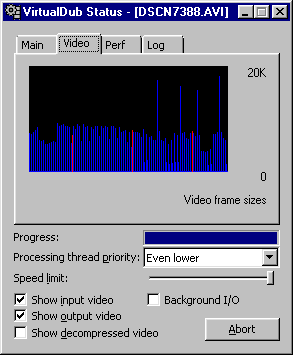
Oh, isn't it skipping frames too? No, this's how `packed bitstream'
works, where P-frame is packed together with B-frame in a single AVI
delta frame that's then followed by a dropped frame, where the codec
will actually be outputing P-frame for display.
Suggested resolutions for the codec are 352 X 240 at 30 FPS or
352 X 288 at 25 FPS. For larger resolutions, maybe consider the
following codec.
 AVC continues the evolution of MPEG by adding yet even more features
to make video compression a bit more effective, e.g. to achieve a
similar (subjective) quality with a lower data rate.
AVC continues the evolution of MPEG by adding yet even more features
to make video compression a bit more effective, e.g. to achieve a
similar (subjective) quality with a lower data rate.
Setup is mostly done through its own giant window. It does, however,
accept key frame interval setting.
The compression speed varies from 9 FPS at veryslow mode (the slowest
reasonable mode; placebo was found useless) to 212 FPS at ultrafast
mode, with the resulting data rate from 11 KB/s to 23 KB/s.
Ratefactor was 32; your other options are quantizer, target data rate
and lossless mode. One thing though, in
ultrafast mode the video is as blocky as Indeo 4 with Haar wavelets.
AVC is designed for 720 X 480 or 720 X 576 video. For larger stuff,
even more advanced codecs like HEVC is recommended. (Note though
that they go beyond Video for Windows at this point)
A weak encoder-decoder. It can decode a dozen of various
bitstreams, but can encode only MotionJPEG, FFMPEG type of HuffYUV
(but not decode for some reason), FFMPEG Video Codec 1 (though not
fully functional), and Digital Video but I can't get it to work.
FFMPEG Video Codec and HuffYUV are actually lossless, but MotionJPEG
is lossy, however it's just JPEG compressed frames. Why would anyone
try putting Digital Video into AVI is beyond me, as it's actually a
complete audio-video stream format for storing audio-video data on
digital video tape that provided a really high data rate (25 MB/s).
Getting it to encode anything can be troublesome. To get it to
encode video, you should set output colour format to planar YCbCr if
you're going to compress in MotionJPEG (most often you'll need 4:2:0
type that includes 2 X 2 chroma downsampling) or RGB32 for FFMPEG
Video Codec 1. If you try to use RGB colour mode with MotionJPEG
it'll most of the time encode noise instead.
Once you get it to encode stuff, it'll compress at very high rates
of about 150 FPS in FFMPEG Video Codec, or about 220 FPS in
MotionJPEG.
Anyway, it lacks my trust as a stable video codec.
 Unlike lossy codecs, these codecs achieve
compression by packing video data in the most effective way, without
dropping any information. There, the competition goes in who can
compress the video more effectively and faster. The resulting
video quality is pretty much the same across all codecs, so there'll
be this only preview on the right.
Unlike lossy codecs, these codecs achieve
compression by packing video data in the most effective way, without
dropping any information. There, the competition goes in who can
compress the video more effectively and faster. The resulting
video quality is pretty much the same across all codecs, so there'll
be this only preview on the right.
Using some them could be troublesome. I'll go through them real
quick here. They're present here in descending order of compression
effeciency.
Without invoking an actual video codec, you can reduce the amount of
video information by
- reducing the size of the video (downsampling; most effective),
- reducing the frame rate,
- using lower colour depth or downsampling chroma.
For example, you can use 320 X 240 instead of 640 X 480, record at
30 FPS instead of 60, 24 bit RGB instead of 32 bit counterpart, or
15—16 bit RGB, or 4:2:0 planar YCbCr that halves chroma sampling in
both directions. Chroma downsampling is exactly what a few Intel
codecs below do.
OK, want to know what all these `4:4:4', `4:2:0' and `4:2:2' mean?
These are codes for video component downsampling. The first number
specifies the amount of pixels in the row that we're talking about;
it's always 4. The second number specifies how many chroma values
are specified for these pixels. 4 means every pixel has it's own
chroma; 2 means 2 pixels share 1 chroma value; 4 means 4 pixels share
same chroma value. The third number specifies if pixels on the odd
row have their own chroma values. It's the same is the second numebr
if they do, and 0 if they share the same chroma with pixels on even
row. That's it.
Some may find chroma downsampling not exactly lossless though, but if
it was already downsampled at some point, you aren't going to lose
anything anyway. And there're an equivalent technique in audio
compression.
As I've mentioned previously, H.264 has a lossless encoding mode. To
invoke it, you'll first have to select `High 4:4:4' profile and then
select the mode. It'll take advantage from all capabilities of H.264
coding standard with the most compact output encoding.
In this mode, it encoded in 6 FPS with data rate of 911 KB/s.
Alternatively, if it's not THAT important to keep exactly the same
pixel values, you can use a very low quantization or ratefactor such
as 12. This'll result in nearly as high quality output. Why?
Becasue, as I've written in the beginning, most of the video data is
not really necessary.
In that mode, it encoded in 3 FPS with data rate of 173 KB/s.
The video codec from the FFMPEG team. Can be encoded by ffdshow
Video Codec.
Compressed at the speed of 45 FPS at the data rate of 1796 KB/s.
Before compressing, you'll have to go to the codec configuration
window and select `FFV1', then choose colour depth to match the
format of the output of your video editing program. RGB32 and 4:2:0
planar YCbCr (YV12) are known to work, 4:4:4 planar YCbCr (YV24) is
known to crash.
Uses arithmetic coding to compress frames. It accepts multiple types
of RGB colour space and several types of YCbCr. And it's fast, which
is good for screen recordings.
Compresses at 159 FPS at the data rate of 2054 KB/s.
Another video codec, for saving video captures. As the name
suggests, it uses huffman coding to compress frames.
It encodes at 196 FPS at the data rate of 2422 KB/s.
Not exactly lossless, as it reduces frame size by downsampling chroma
by 4 pixels horizontally and 2 pixels vertically, that is 4:1:0.
Encodes at 187 FPS with data rate of 2532 KBps.


Whoops! This codec does not understand 32 bit RGB, or anything
that's not 15 or 24 bit RGB for that matter. If you try using it
with such a colourspace, you'll get this FUBARD striped output or an
error.
Anyway, it compresses by simply downsampling chroma by two in both
directions.
Encodes at 206 FPS with data rate of 3376 KB/s.
Bundled with DOSBox. For a reason. It's a special-purpose codec,
designed for computer-generated graphics where on-screen elements
move on the screen, such as program windows of the window manager
you use. Frames are compressed using Deflate method. You are not
supposed to use it to compress Realworld recordings.
Anyway, it compressed at 17 FPS with data rate of 5064 KB/s.
I didn't try compressing some gameplay of some old computer video
game with it, but the only time I tried compressing screen capture it
compressed it much better than Lagarith (about 16 times smaller
result).
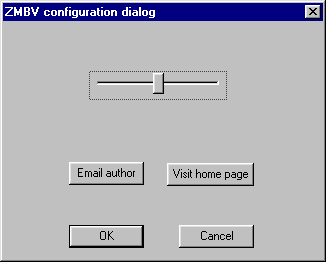
The codec setup menu contains The Control™ that lets you configure
Nothing™.
Together with video you can also compress audio. This's done thorugh
Audio Compression Manager, which is a separate thing. Audio doesn't
consume as much space as video does, but if your task is getting the
file as small as possible, then audio compression will be useful too.
As with video, there're multiple audio compression algorithms
available.
Raw data rate can be reduced by
- reducing sample rate,
- using lower sample precision, or
- using less audio channels.
The real question here is how you prioritise quality and data rate.
For the sample rate, 44.1 kHz is enough for pretty much everything.
22 kHz (radio quality) can be sufficient too, but even with 11 kHz
audio you can hear something!
16 bit samples provide 256 times better sound than 8 bit samples
while using only twice as more data rate. 8 bit samples can be fine
for audio loud enough, but it has higher noise floor so you WILL hear
quantization noise on quieter fragments. It's still possible to hear
the noise in 16 bit recordings though.
Mono can be used instead of stereo, especially if there's little to
no difference in channels, or if that difference not important
anyway.
Audio Codec 3 AKA Dolby Digital performs compression by noise
reduction and exploiting other effects of subjective sound masking.
Noise reduction is done per frequency bands, as the noise close to
loud signal won't be heard anyway.
Supported sample rates are 32, 44.1 and 48 kHz. Supported channel
layouts are mono, stereo, 3/0, 2/2, 3/2 and 5.1. (Don't ask me on
n/m channel layouts) Optimal data rate can vary for various records;
64 kb/s may or may not be enough.
I do not know what extensible stuff it offers or utilises. Other
than that, it's almost the same as AC-3 above.
It encodes samples as 8 bit floating point numbers. They have a
sign, 3 bits for encoding the significand of a sample and 4 bits for
sample exponent. You won't hear noise at quiet sections, but you'll
hear it in loud sounds.
Uses different algorithm that may compromise audible bandwidth,
instead of loud signals. Less common. Encodes in 8 bits too.
This audio codec is directly from 2G. Intended for encoding voice.
Will remove everything that it thinks not human voice.
This codec encodes the difference between the current sample and the
previous one using a dynamically changing scale. This can add some
noise to the sound, which results from imperfect encoding of
difference. There's also an increased noise floor reported at
2-14. Works nice as long as there's no clipping.
The codec stores audio in frames that start from an absolute sample
value, pretty much like key frames in video stream. These frames can
have seams that can cause regular clicking.
Professionals hate ADPCM.
Some may tell you that this codec is intended for encoding voice, bit
in reality, its algorithm is optimised for no one.
This implementation causes audio drifting over large period of time.
DEPRECATED!!!!!!! Microsoft can't make anything
that doesn't suffer from bugs!!!
LAME lets you encode audio in the world's most popular audio format —
MP3! MP3 is everywhere. You can't run away from MP3. It'll stalk
you.
Recent version doesn't work for me though. Encode with it, try to
play back — first there're freezes, and then the rest of the video is
desynced. Perhaps, that's more likely due to VLC malfunctioning…
What an irony that MP3 became the world's most popular format for
music distribution, when it from the beginning was supposed to be
used for voice compression and broadcast. (More precisely, it was
tweaked for encoding acapella) Perhaps the absolute most of music
does contain some voice anyway.
This's an MP3 codec from the creators of MP3 Fraunhofers. Its key
feature is the data rate limit. If you have the `Standard' version,
then you can not encode anything because Fraunhofer said so. If it's
`Advaaaaanced' — up to 56 kb/s (sufficient for mono but very low for
stereo). If it's `Professsional' — the maximum is 128 kb/s.
Finally, if you use the `Radium' version, then all 320 kb/s is
possible.
Note: you can actually find all of them together on
a single installation. If this is the case, all you need to do is
disable one version then enable another.
It's known that this codec works better then LAME in lower bitrates,
but these really arbitrary limitations are still ridiculous. They
only don't prevent some from releasing huge MP3s with maximum
bitrate.
Some have reported severe performance problem when trying to play
back files with compressed audio and video. This might be
due to bad cooperation of Video for Windows and Audio Compression
Manager. Modern systems aren't affected. You may or may not
encounter that problem.
You may have an option to use the `maximum compatibility mode' that
uses 16 bit version of subsystem for compatibility with 16 bit
software. Of course it'll decrease the performance since the
processor will have to spend more time on switching contexts.
The maximum data rate for compact disks is about 150 KB/s. This data
rate is shared between audio and video data. You WILL have to take a
compromise on audio quality. For video, 120 KB/s was found a good
data rate in general, sufficient for old codecs to encode 320 X 240
video at 15 FPS, and for newer (cosin-based) codecs — 30 FPS. This's
a single speed CD. Double speed CDs have maximum data rate of
300 KB/s that lets twice as much with the same codecs. Quad data
rate is 600 KB/s.
Note however that a given computer may not be able to handle very
high data rate, either due to insufficiently fast HDD or CD drive, or
insufficiently fast processor to process all the incoming data. The
`scalability' option of Indeo 4 and 5 may offset the problem, but no
other codecs have this feature.
You probably already lost your chance to not know about it completely
as you had just read a big web page about it. However, for the case
if you hate this subsystem (and I know some do), I've made this
section.
You can minimise the amount of times you encounter it. You can do
something from the following list.
- Move from Windows to somewhere else. For best results, move to
Macintosh.
- If you still need to use Windows programs, you can use Wine the
compatibility layer. Alternatively, you can use the version of
Windows that does not include the subsystem, and more, that
doesn't use it itself. (The last such version is 3.1)
- Avoid web sites that store video data in AVI files. If you're
offered a choice, do NOT choose AVI.
- Get rid of as many AVI files as you can.
There may be more possible actions that can be done to get rid of
Video for Windows. Note however: it's impossible to completely get
rid of AVI. AVI can hide in bushs. AVI can lie in tetherest places.
You can even not know that what you look at right now is AVI. You
can only accept this.
 Back to The Main Page
�
Back to The Main Page
�
 General
 Known Bugs
 About Video
Codecs
About Video
Codecs